Relations
BetterMyAdmin allows relationships (similar to foreign keys) using MySQL-native (InnoDB) methods when available and falling back on phpMyAdmin’s internal relations, stored in the phpMyAdmin configuration storage, when needed. There are two ways of editing these relations, with the relation view and the drag-and-drop designer – both of which are explained on this page.
Note
You need to have configured the phpMyAdmin configuration storage for using the internal relations (those not enforced by MySQL).
Technical info
Currently the only MySQL table type that natively supports relationships is InnoDB. When using an InnoDB table, BetterMyAdmin will create real InnoDB relations which will be enforced by MySQL no matter which application accesses the database. In the case of any other table type, BetterMyAdmin enforces the relations internally and those relations are not applied to any other application.
Relation view
In order to get it working, you first have to properly create the [[pmadb|pmadb]]. Once that is setup, select a table’s “Structure” page. Below the table definition, a link called “Relation view” is shown. If you click that link, a page will be shown that offers you to create a link to another table for any (most) fields. Only PRIMARY KEYS are shown there, so if the field you are referring to is not shown, you most likely are doing something wrong. The drop-down at the bottom is the field which will be used as the name for a record.
Relation view example
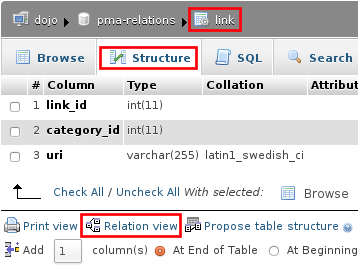
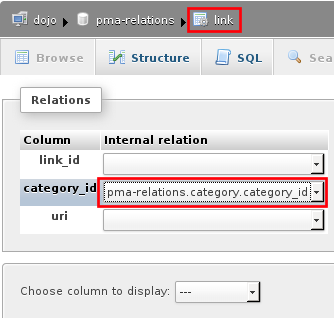
Let’s say you have categories and links and one category can contain several links. Your table structure would be something like this:
category.category_id (must be unique)
category.name
link.link_id
link.category_id
link.uri.
Open the relation view (below the table structure) page for the link table and for category_id field, you select category.category_id as master record.
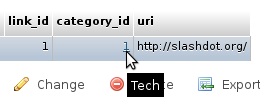
If you now browse the link table, the category_id field will be a clickable hyperlink to the proper category record. But all you see is just the category_id, not the name of the category.
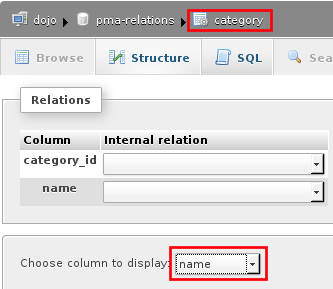
To fix this, open the relation view of the category table and in the drop down at the bottom, select “name”. If you now browse the link table again and hover the mouse over the category_id hyperlink, the value from the related category will be shown as tooltip.
Designer
The Designer feature is a graphical way of creating, editing, and displaying BetterMyAdmin relations. These relations are compatible with those created in the relation view (and with phpMyAdmin’s).
To use this feature, you need a properly configured phpMyAdmin configuration storage and
must have the $cfg['Servers'][$i]['table_coords'] configured.
To use the designer, select a database’s structure page, then look for the Designer tab.
To export the view into PDF, you have to create PDF pages first. The Designer creates the layout, how the tables shall be displayed. To finally export the view (as PDF, SVG, EPS or Dia), select your page, which you have created with the designer.
Diagram
The Diagram tab, next to Designer on a database’s pages, draws an entity-relationship diagram of the whole database automatically. It is a BetterMyAdmin addition (phpMyAdmin has no such tab) and it is read-only: nothing is arranged by hand and nothing is saved, so it needs no configuration storage and always shows the current structure.
Every table is a box listing its columns with their types. PK marks the primary key, FK a column that references another table, UQ a column with a unique index of its own and a
?after the name a column that acceptsNULL. Views have a dashed border and an italic name.A line goes from the referencing column to the referenced one for every foreign key (InnoDB). Internal relations from the phpMyAdmin configuration storage are drawn dashed. Relations to tables in another database are only listed in the list view.
The tables are placed automatically: referenced tables to the left of the tables that reference them, tables without relations in rows below.
Drag to move the diagram, use the mouse wheel or pinch to zoom, or the zoom buttons and Zoom to fit. With the diagram focused, the arrow keys move it and +, - and 0 zoom in, out and to fit.
Type in the search box to highlight the tables whose name contains the text; the first one is centred, Enter moves to the next.
The button in a table’s header collapses it to its name; Collapse all and Expand all do it for every table.
Point at a relation to highlight the two tables and columns it links; point at a table to highlight its relations. Click a table to open its Structure page.
Export as SVG and Export as PNG save the whole diagram as an image, in the colours of the current theme.
List view shows the same information as text: the tables with their columns, then every relation.
The diagram shows only the tables and columns your MySQL account has privileges on. Large databases are read in one request, so the tab stays fast with hundreds of tables. When a user group hides the Designer, the Diagram is hidden too.